

Do you feel overwhelmed by an inbox that never seems to stop growing? We’ve all been there—spending hours sorting through newsletters, invoices, and customer queries.
But what if your email could manage itself?
Today, I’m going to show you how to build a Smart Email Assistant using n8n. This isn’t just a simple “if this, then that” automation; we are building an intelligent system that thinks, classifies, and even drafts replies for you.
What is n8n? (The Quick Version for Newbies)
Before we dive in, think of n8n as the “Lego set” for the internet. You connect different blocks (called Nodes) to move data from one place to another. In this workflow, we are connecting Gmail, Google Calendar, and OpenAI to create a workflow that actually understands the context of your messages.
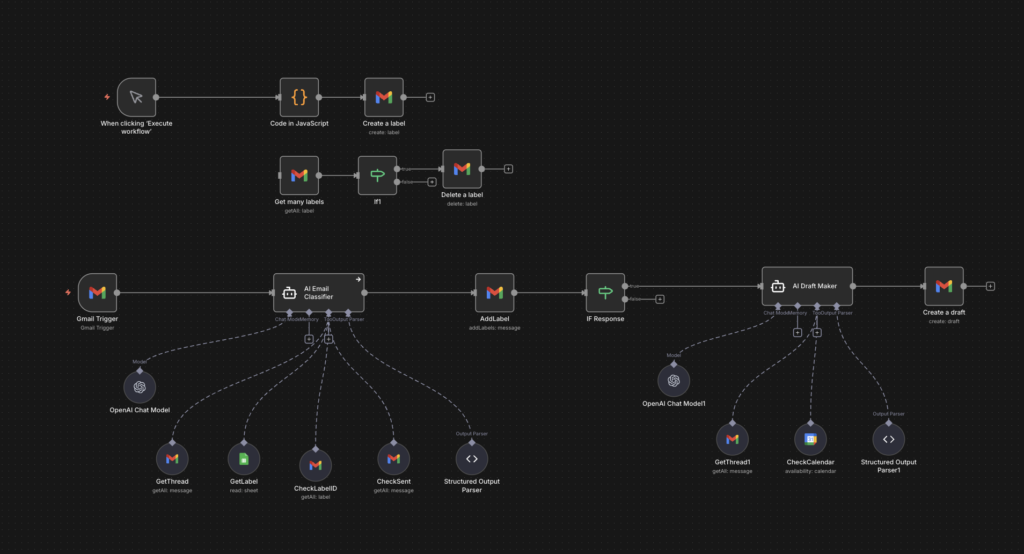
Step 1: The “Brain” – AI Email Classification
The first major step in our workflow is the AI Email Classifier. Instead of using rigid keywords, we use an AI Agent (powered by GPT-4o-mini).
This agent looks at the sender, the subject, and the snippet of the email. It then decides which “category” it falls into:
- Customer Support: Technical issues or troubleshooting.
- Finance/Billing: Invoices or receipts.
- High Priority: Urgent requests.
- Promotion: Newsletters and sales.
Why this is smart: The agent doesn’t just guess. It uses “Tools” (like the GetThread node) to look at previous emails in the conversation to make sure it has the full story before labeling.
Step 2: Taking Action – Automatic Labeling
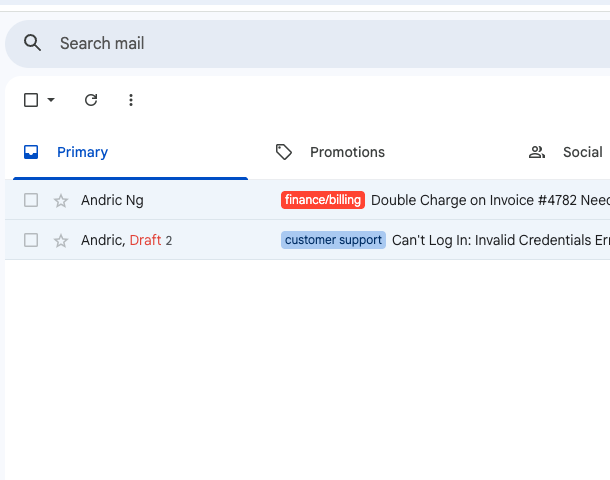
Once the AI decides on a category, the workflow uses the AddLabel node. It automatically applies the correct tag in your Gmail. When you open your inbox, everything is already organized. No more manual dragging and dropping.
Step 3: The “Assistant” – Drafting Your Replies
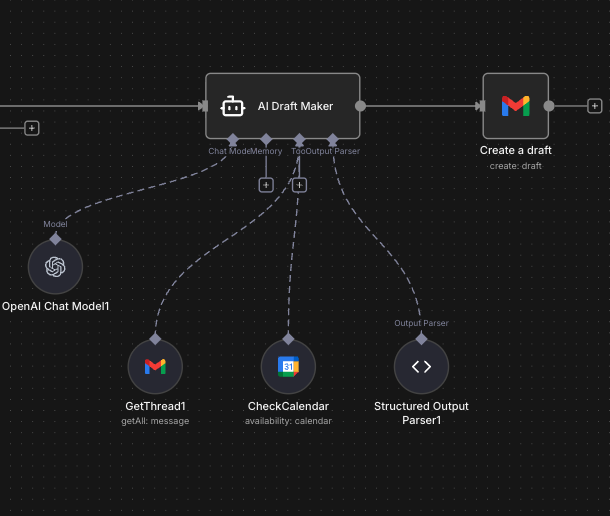
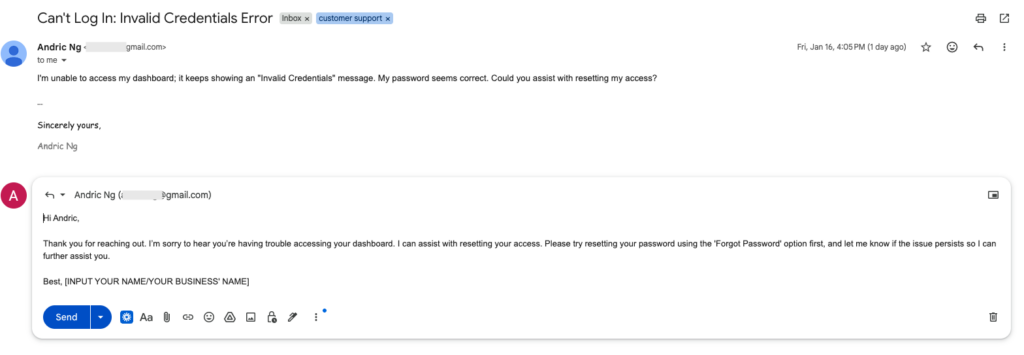
This is where the magic happens. If the AI determines that an email “requires a response,” it triggers the AI Draft Maker.
This isn’t a generic template. The agent:
- Checks your schedule: It uses a Google Calendar tool to see when you are free.
- Suggests times: If someone asks for a meeting, it will literally look at your calendar and say, “Andric is free next Tuesday at 3:00 PM.”
- Drafts the email: It writes a professional reply and saves it as a Draft in your Gmail.
Why This is a Game Changer for One-Person Businesses
As an automation developer, I always tell people: Your time is your most valuable asset. By using this n8n template, you aren’t just saving 5 minutes per email. You are removing the “mental load” of decision-making. You no longer have to wonder, “When am I free?” or “How should I reply to this invoice?” The AI has already done the heavy lifting. All you have to do is hit “Send.”
How to Use This Template
- Import the JSON: Copy the code provided and paste it into your n8n canvas.
- Connect Your Credentials: Link your Gmail and Google Calendar accounts.
- Set Your Local Timezone: Ensure the AI knows your specific city so the calendar invites are accurate.
Download the Free Template
Ready to try it out?
You can download the n8n workflow template for free her
Free AI Automated Gmail Manager
Looking for more? Browse my full collection of AI automation tools:
AI Automation & n8n Template Gallery
